Most lip sync tools need a video to start from. EasyVid makes the video too: write a story, and in Director Mode every scene is generated as a clip where your characters say their lines on camera, lips matched to their voices.
Free to sign up · No credit card required
Seven scenes, each one clip with its own dialogue, made from the same references for Lena, her dad Marcus, and the baby dragon.
Made from these references
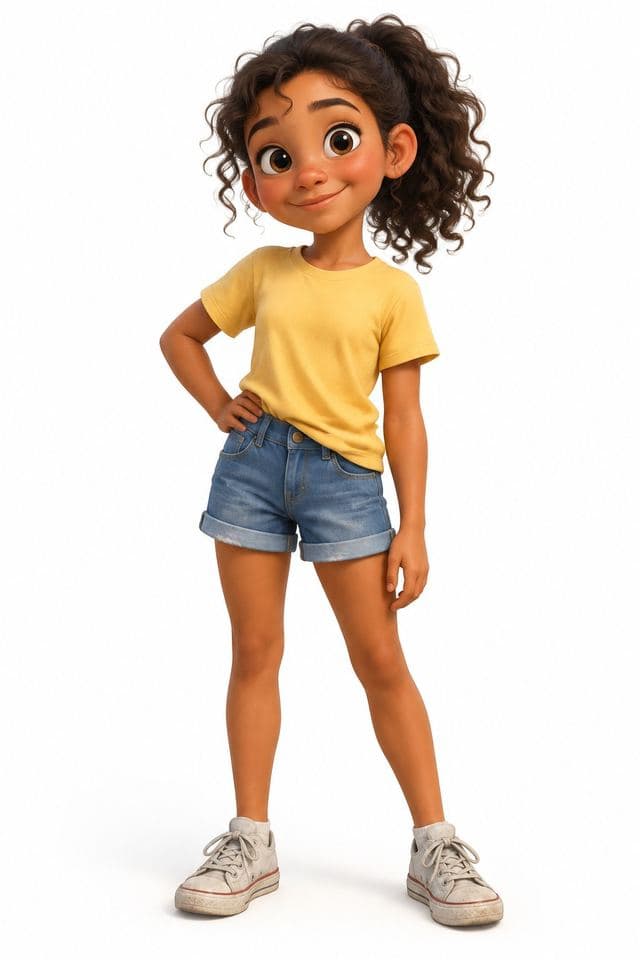
Lena

Marcus

Baby Dragon

Dragon Egg

Fire Extinguisher
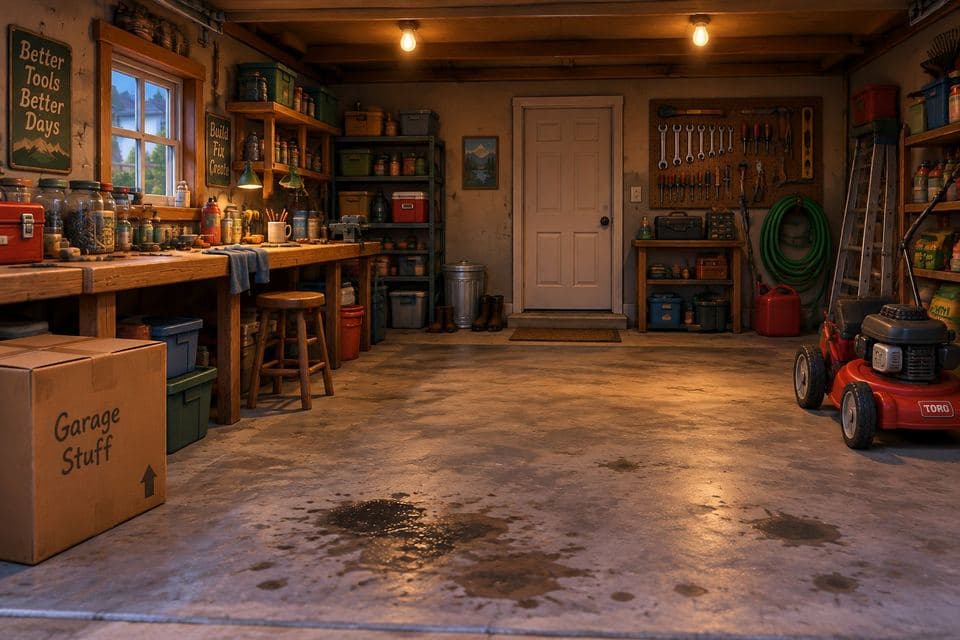
Family Garage

Scene 1
Lena: "What the heck is this?"

Scene 2
Lena: "Wait... what's happening?"
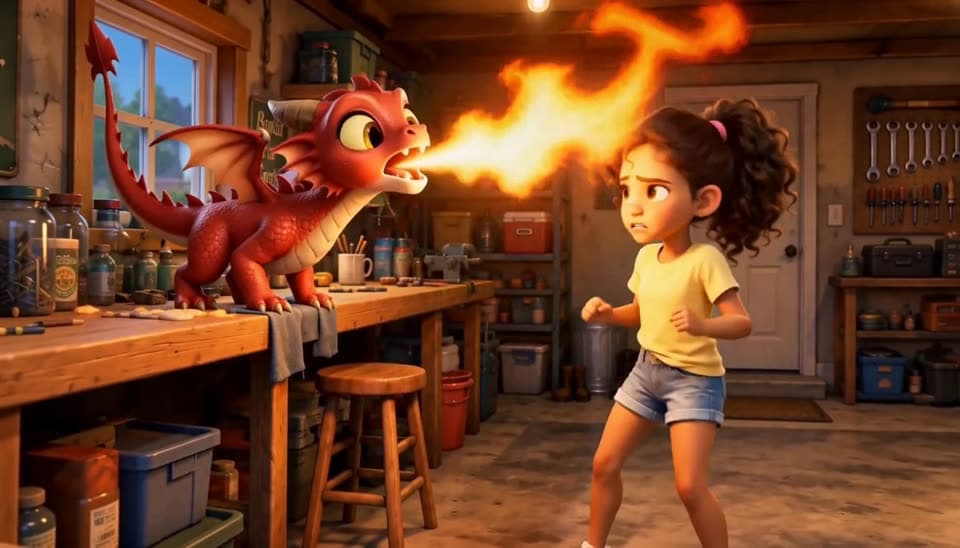
Scene 3
Lena: "Ahhh! A dragon?? Dad! DAAAAAD!"

Scene 4
Lena: "There's a dragon in the garage!" Marcus: "Sweetie, there is no dragon in that garage." Lena: "There IS!"
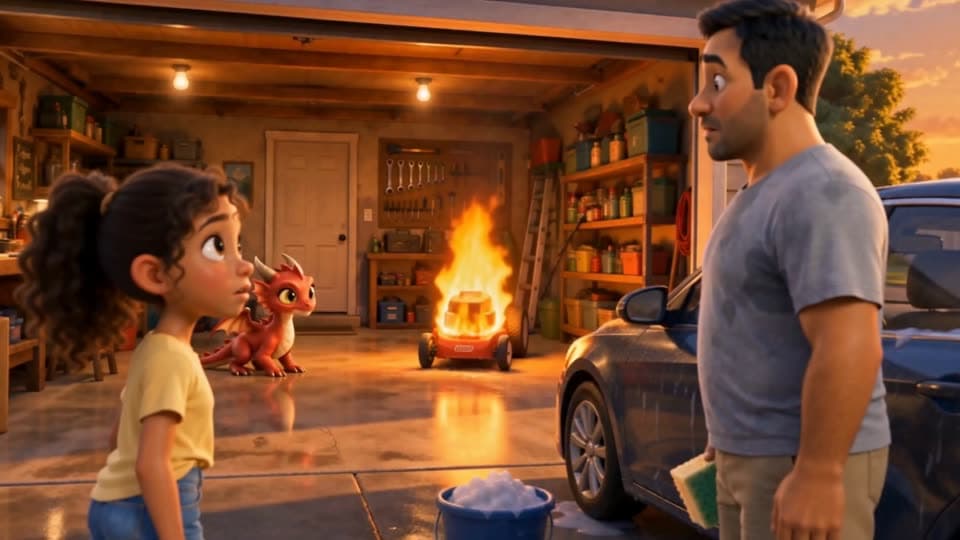
Scene 5
Marcus: "Hey! That's my lawnmower!"

Scene 6
Marcus: "I can't believe it, this was brand new!"
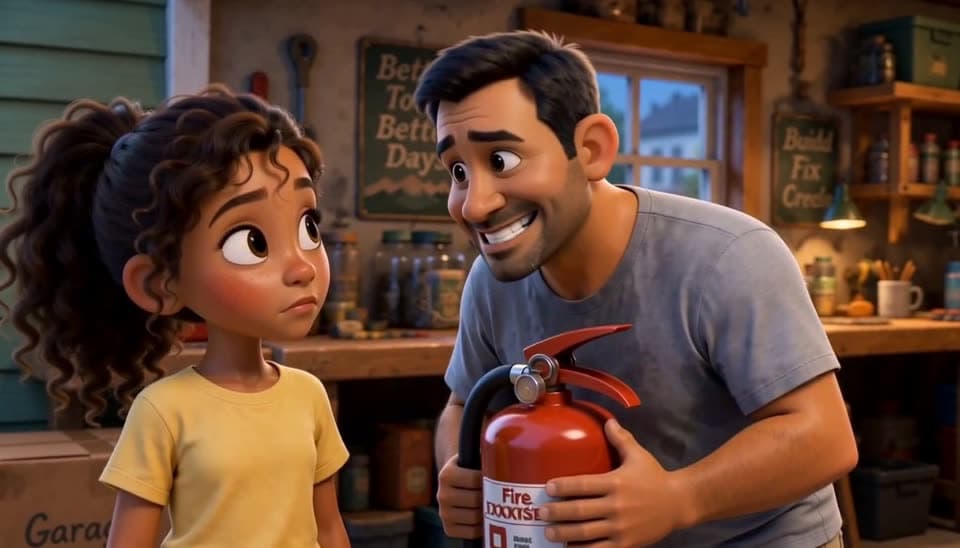
Scene 7
Marcus: "We are not telling your mother about this." Lena: "She's gonna see the lawnmower."
Scenes from a short film about a girl, her dad, and a baby dragon in the garage. Hover a scene to play it, and click to hear it.
Lip sync
Each scene's voice audio is sent to the video model with the prompt, so the clip is generated with the character already speaking the line, not dubbed afterwards.
Conversations
The script keeps the speaker's face on camera while their line plays. When a scene cuts between shots, the cuts follow the lines, so each person speaks in their own shot.
Same cast
Characters, locations, and props are reference images used in every scene they appear in, so Lena and Marcus look like themselves from the first line to the last.
Video models
Director Mode generates with Seedance 2.5, Seedance 2, Seedance 2 Fast, or MiniMax H3 Max, and any scene can use a different one. This film is mostly MiniMax H3 Max, with one Seedance 2.5 scene.
Anyone whose story needs characters who talk, not a narrator over pictures.
Make short films where the drama is in what people say to each other.
Bring back the same cast, episode after episode, speaking their own lines.
Show a conversation instead of describing one.
From an idea to a film where everyone speaks on camera.
Pick Director when you create the project. Describe your story, or paste a script you already wrote.
EasyVid writes the scenes and lines, and creates the characters, locations, and props they use.
Choose a voice for each character, then generate the dialogue audio.
Each scene becomes a video clip with its dialogue, the speaker's lips moving to the line.
Rewrite or regenerate any scene, add subtitles, and render the finished video.
Discover what you can create with EasyVid
Create stunning videos using AI voice and video generation.
Create longer videos with scenes, narration, subtitles, and editable pacing.
Create short AI videos for ads, hooks, teasers, and social posts.
Create 2-minute videos with scenes, narration, subtitles, and editable pacing.
Create 3-minute explainers, stories, lessons, and longer social videos.
Create deeper explainers, video essays, story videos, and YouTube content.
Create long-form videos for YouTube, lessons, video essays, and stories.
Transform your scripts into engaging videos effortlessly.
Convert a simple text prompt into captivating videos.
AI music video generator that syncs visuals to your track.
Create professional videos without a camera or microphone.
Produce videos optimized for YouTube and social media.
Turn your blog posts into engaging video content.
Turn listing photos into narrated home tour videos.
Create Seedance 2.5 videos in EasyVid Director Mode.
Create videos effortlessly with our intuitive interface. No technical skills required.
Create professional videos in minutes without hiring video editors or scriptwriters.
Produce professional-grade videos with AI-powered visuals and voiceovers.
“Before EasyVid, I was too busy to create TikTok videos for my business. Now I can easily post 1 video per day without spending hours editing.”
Daniel F.
Content Creator
“I tried other AI video generators, but most churned out low-quality videos with random visuals. EasyVid adds visuals that perfectly fit my script.”
Mason M.
YouTuber
“EasyVid is the easiest video generator I've ever used. It understands what I want without me needing to specify every detail. It just works.”
Elaine K.
Marketing Manager