EasyVid gives each character a reference image and a voice, then uses them in every scene the character appears in. No model to train.
Free to sign up · No credit card required
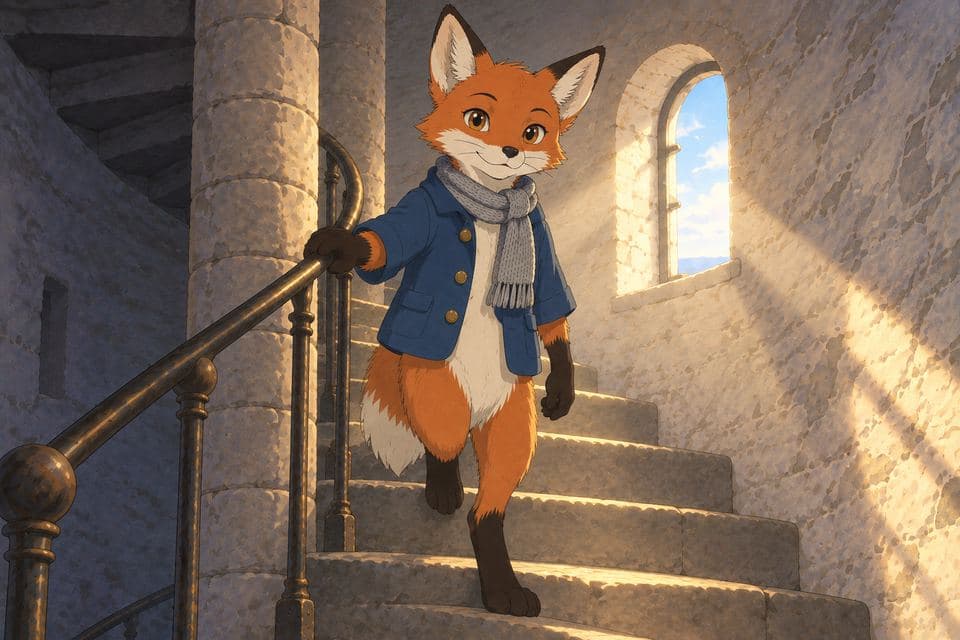
The references for an animated bedtime story about a fox who keeps a lighthouse, then all twelve scenes drawn from them. The fox and an old otter fisherman are the same in each one.
Drawn from these references
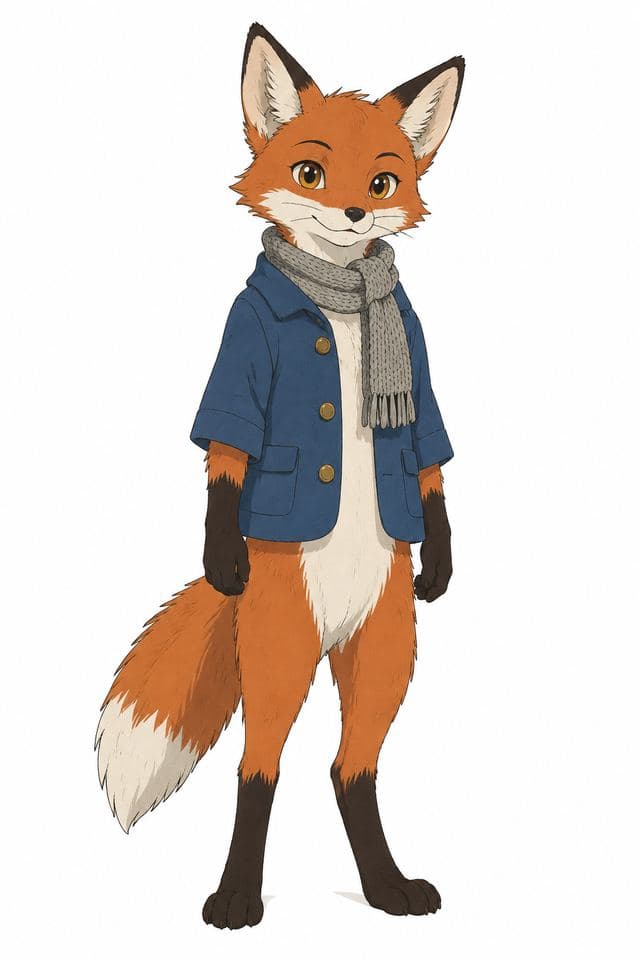
Pip
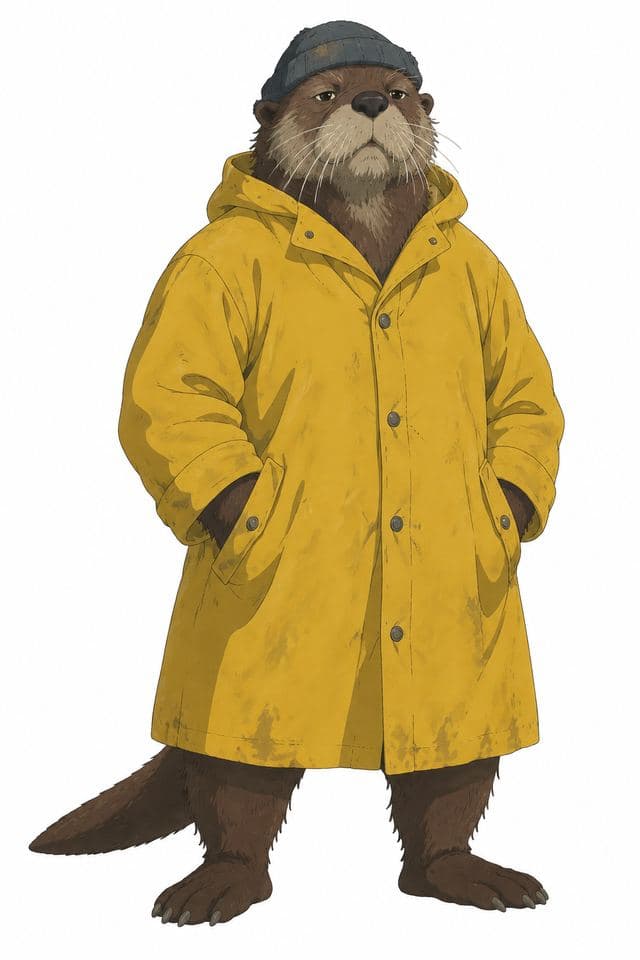
Bram
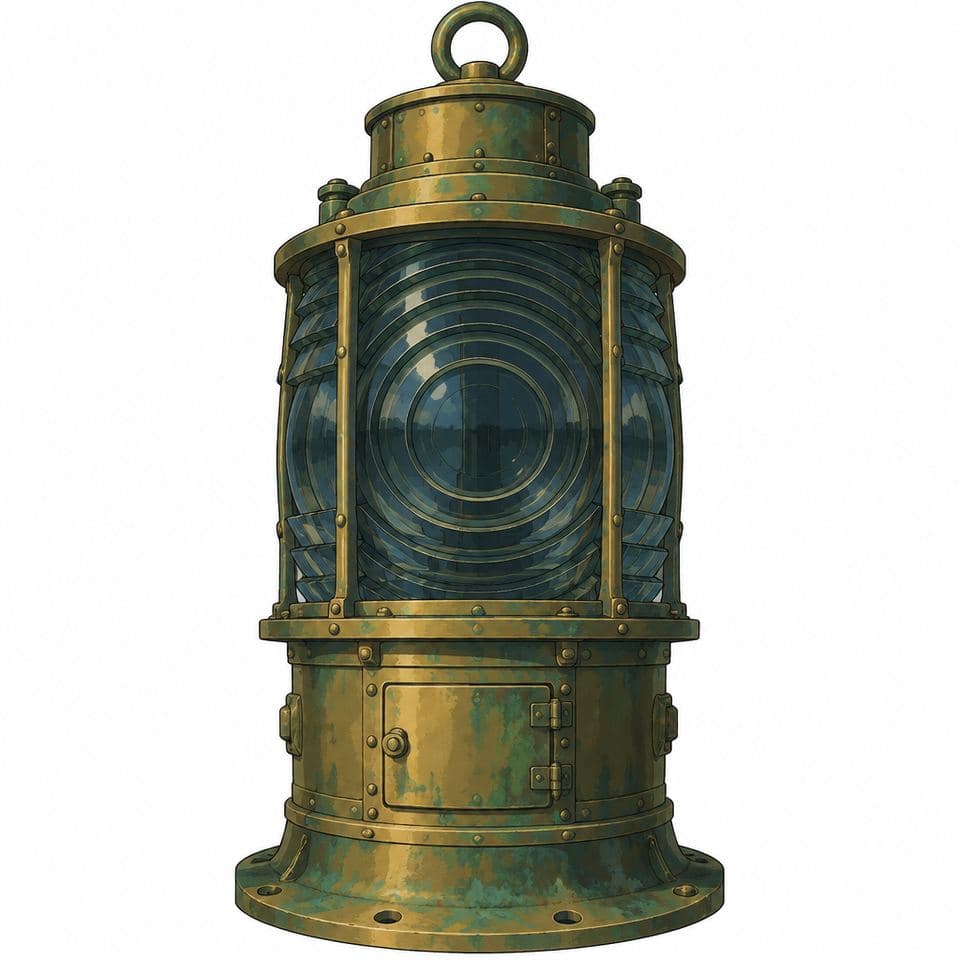
Great Lamp
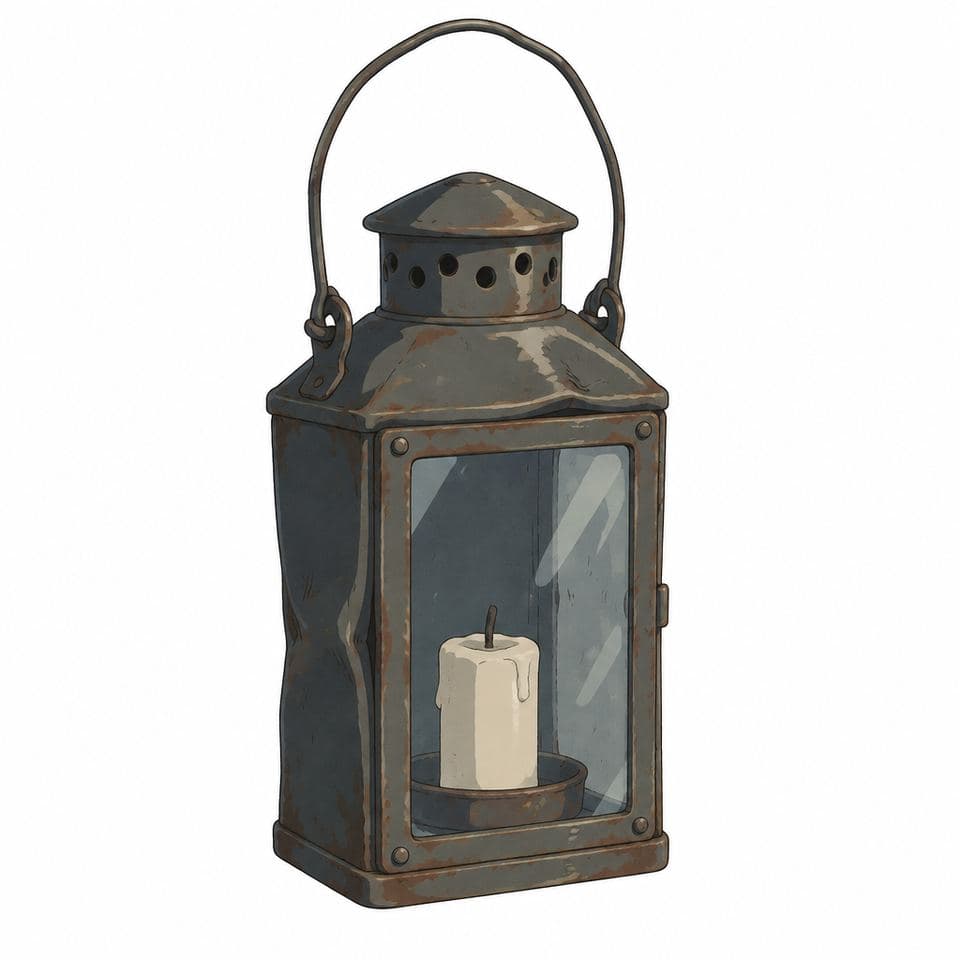
Hand Lantern
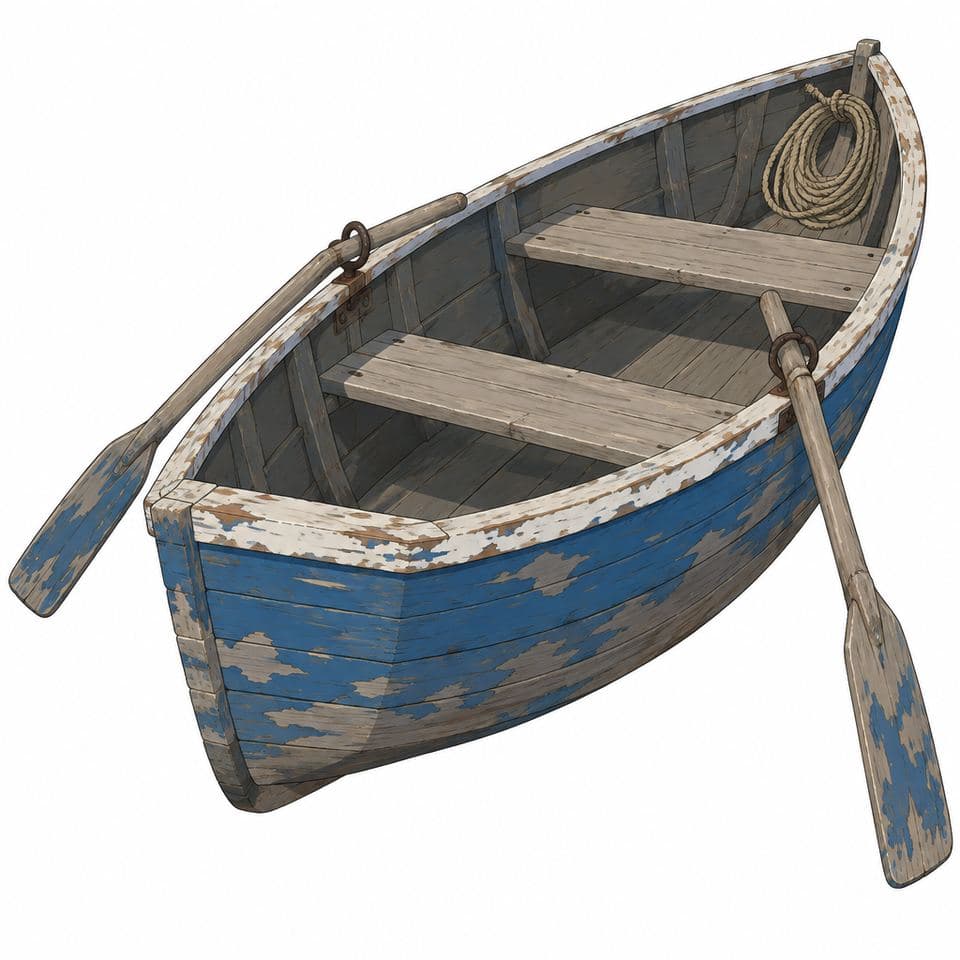
Rowboat
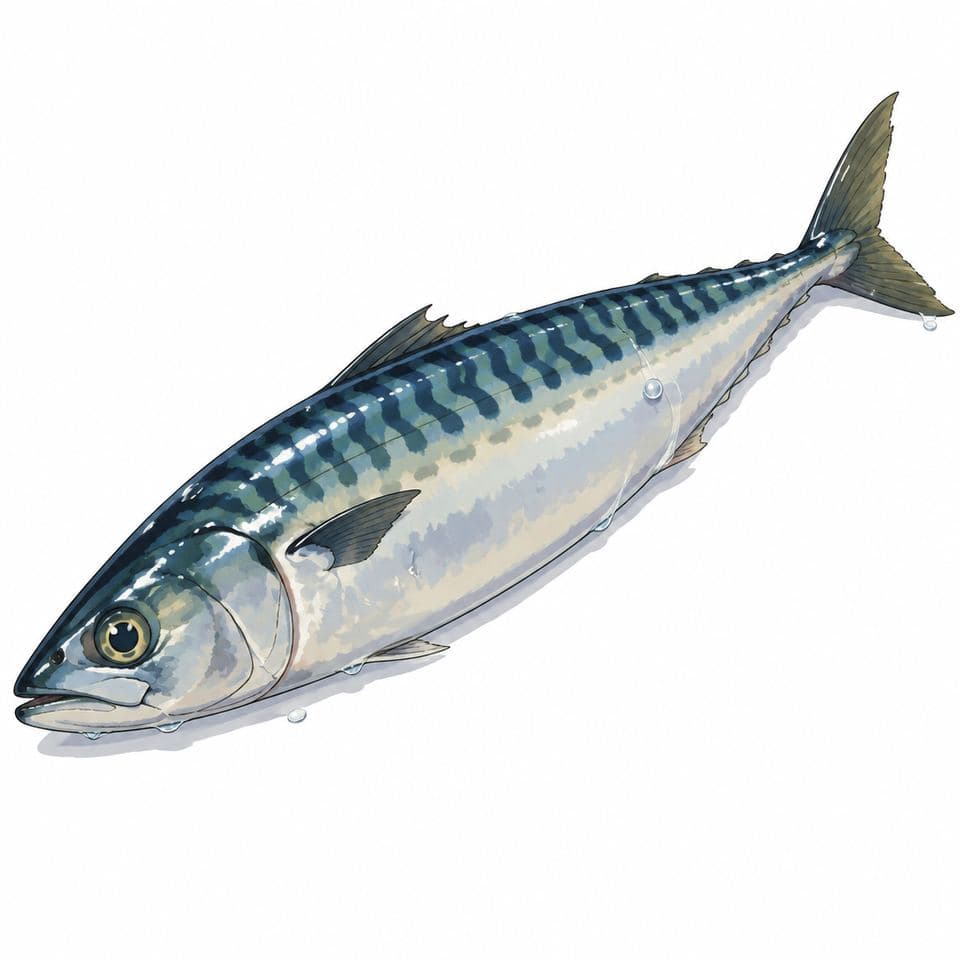
Fish
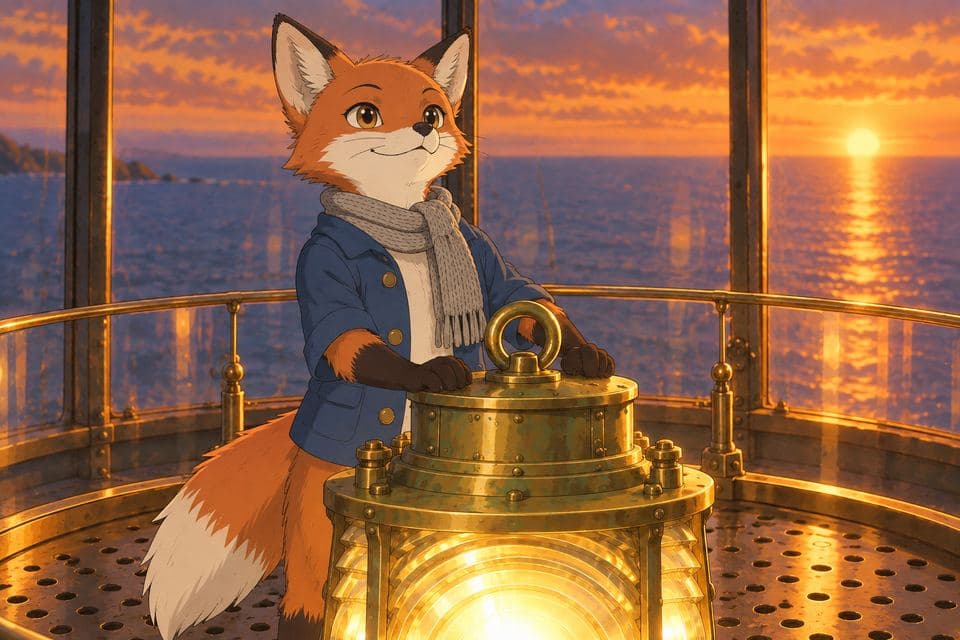
Scene 1
Pip the young fox kept the lighthouse on the rocky island, and every evening Pip lit the great lamp before the dark could arrive.
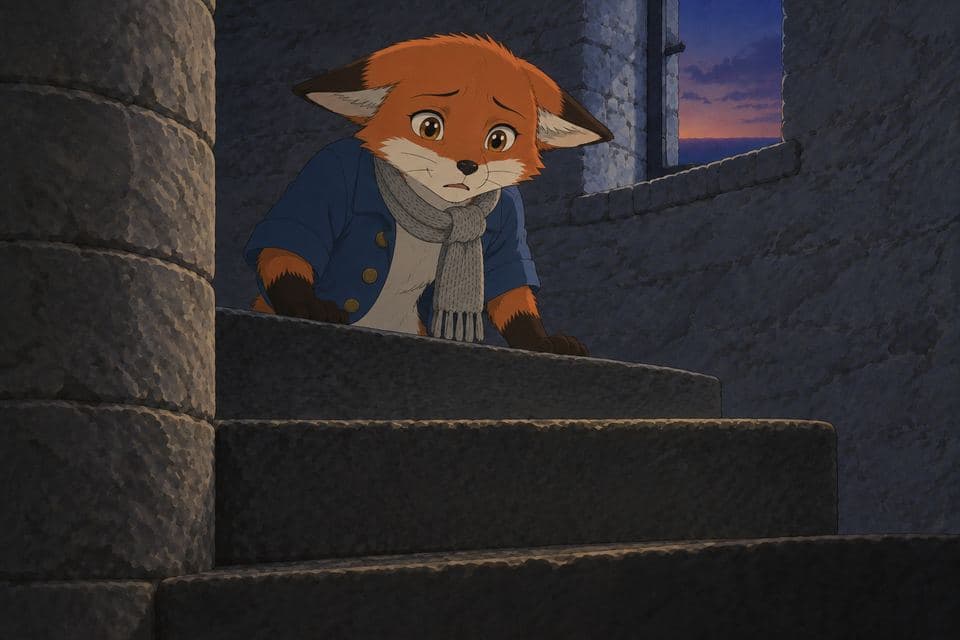
Scene 2
But that narrow spiral staircase always filled Pip's small heart with fear.

Scene 3
One stormy night, the wind howled wild across the sea.
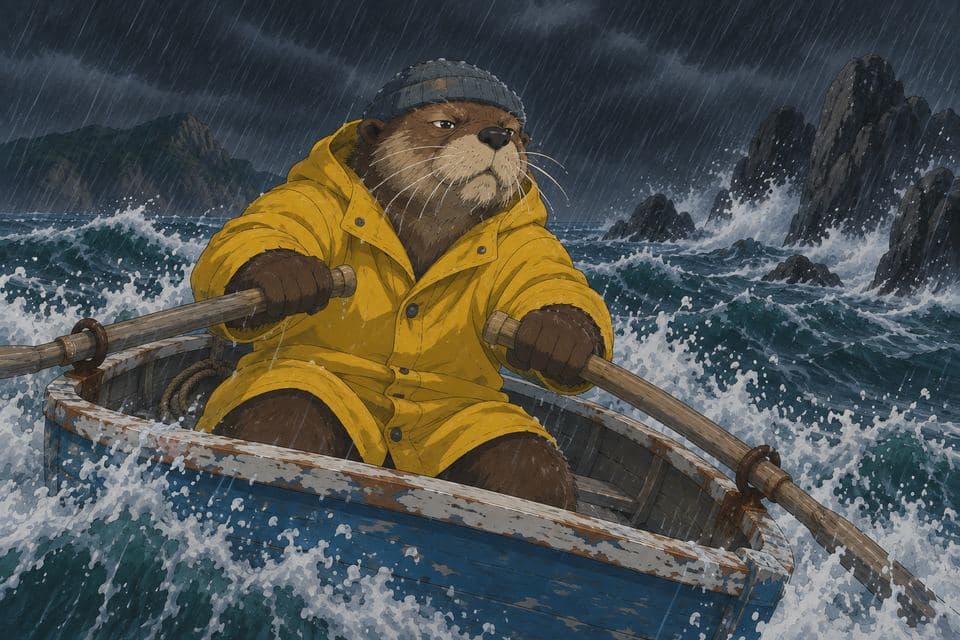
Scene 4
Old Bram the fisherman was rowing home, trusting the lighthouse to guide him in.
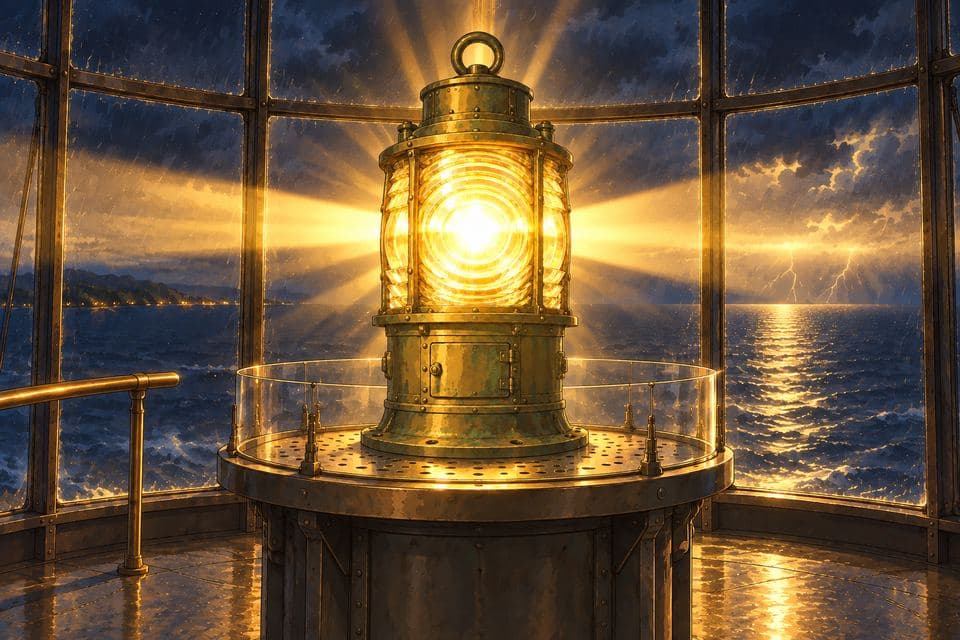
Scene 5
Suddenly the great lamp flickered, sputtered, and went out completely.
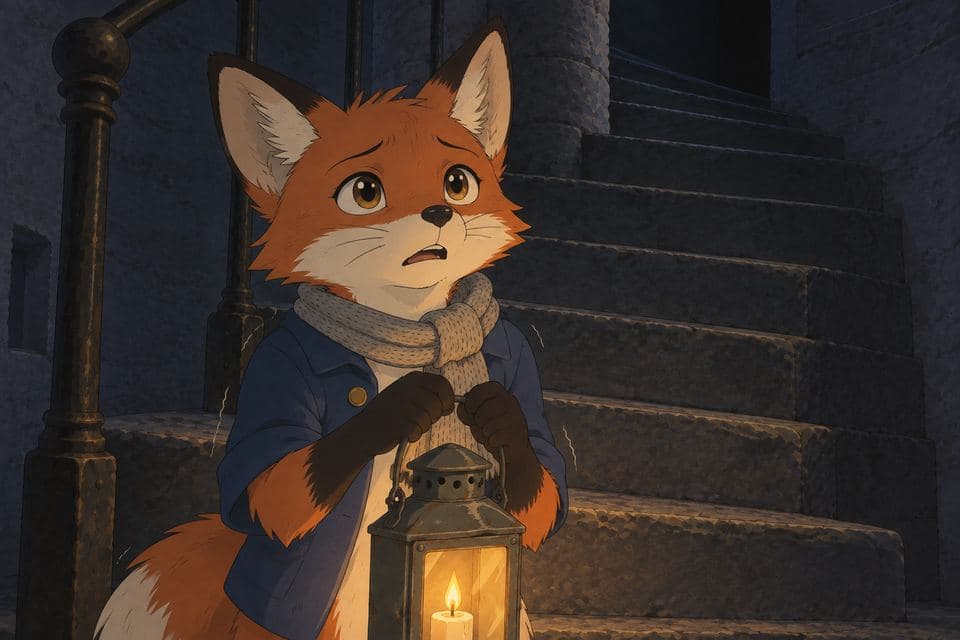
Scene 6
Pip froze at the bottom, staring at the darkness that climbed away above him.
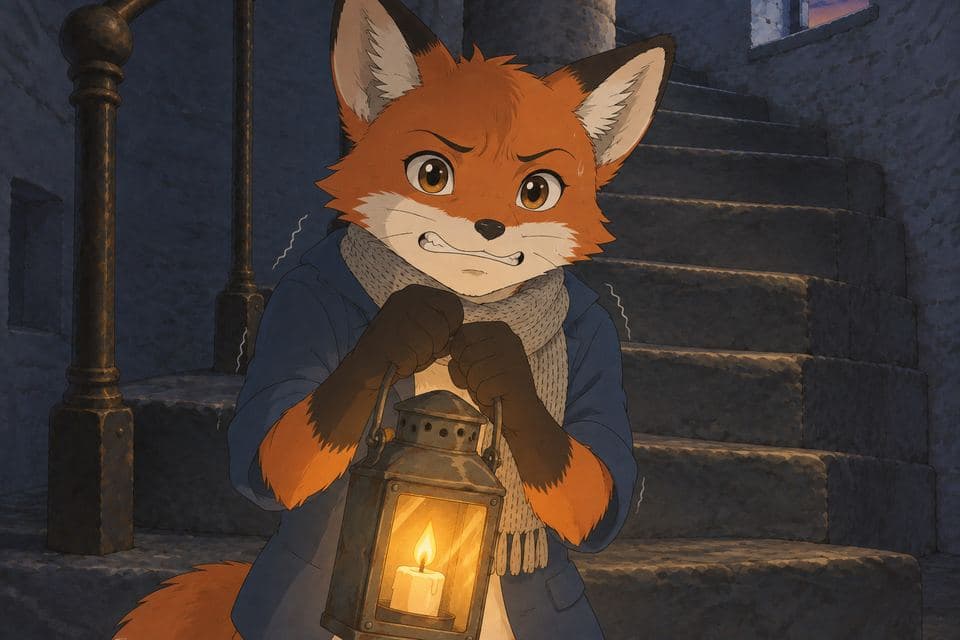
Scene 7
But Bram was out there, needing him, so Pip took one brave breath.
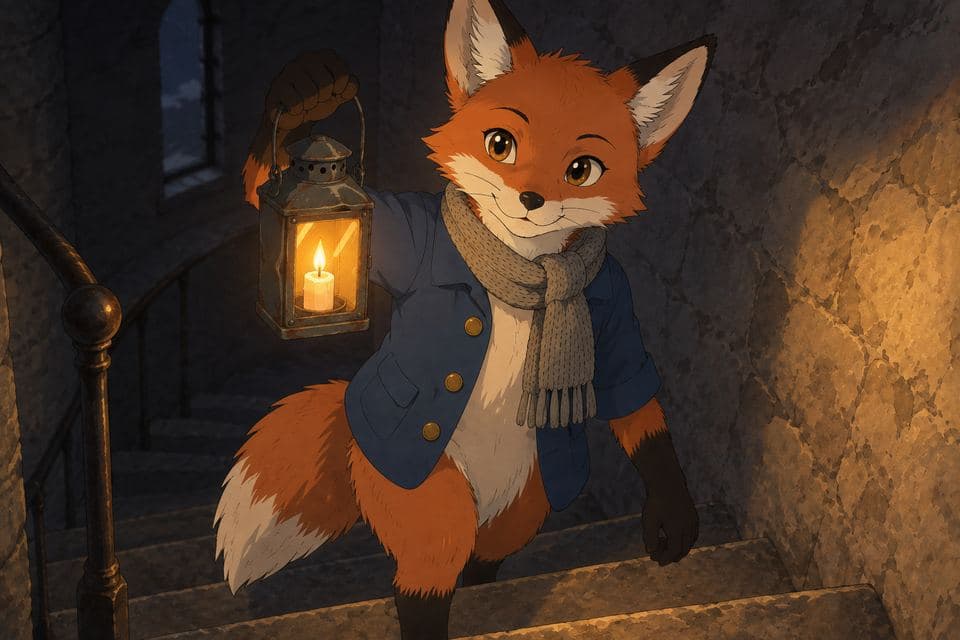
Scene 8
Step by step, the little lantern pushed the darkness back.
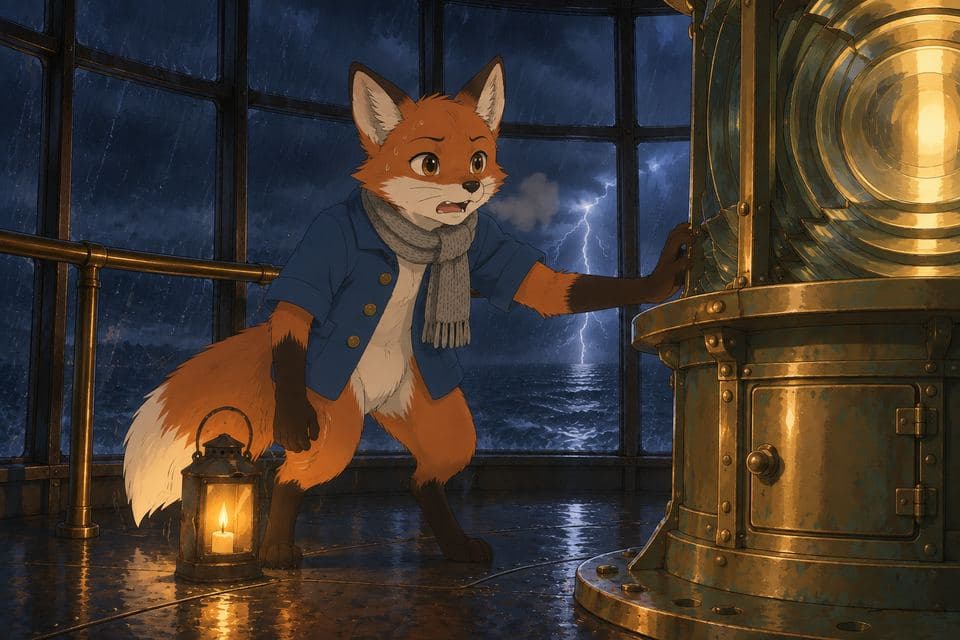
Scene 9
At last Pip relit the great lamp, bright and steady against the storm.
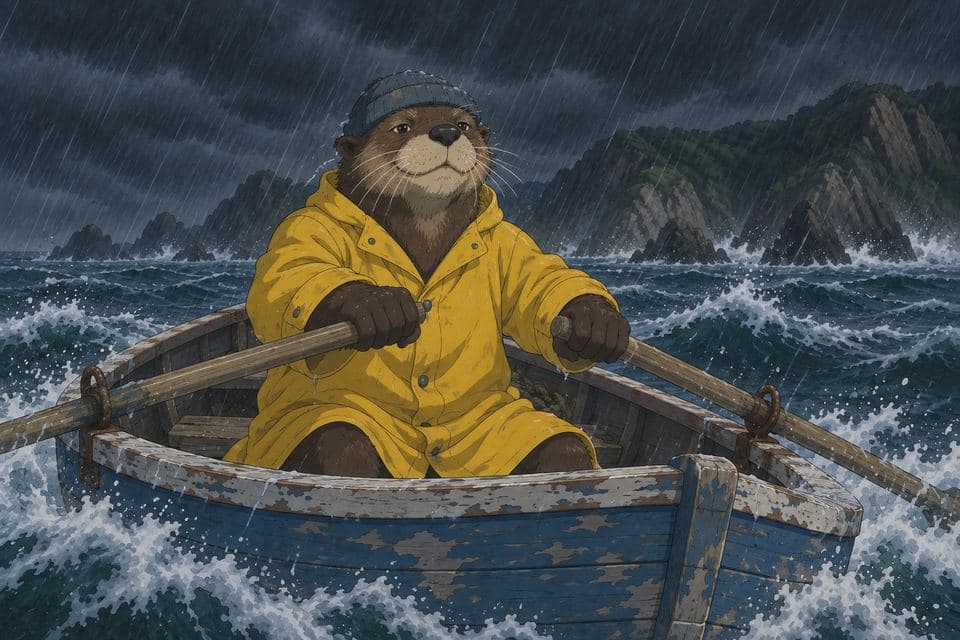
Scene 10
Far below, Bram smiled and steered safely home by the light's return.
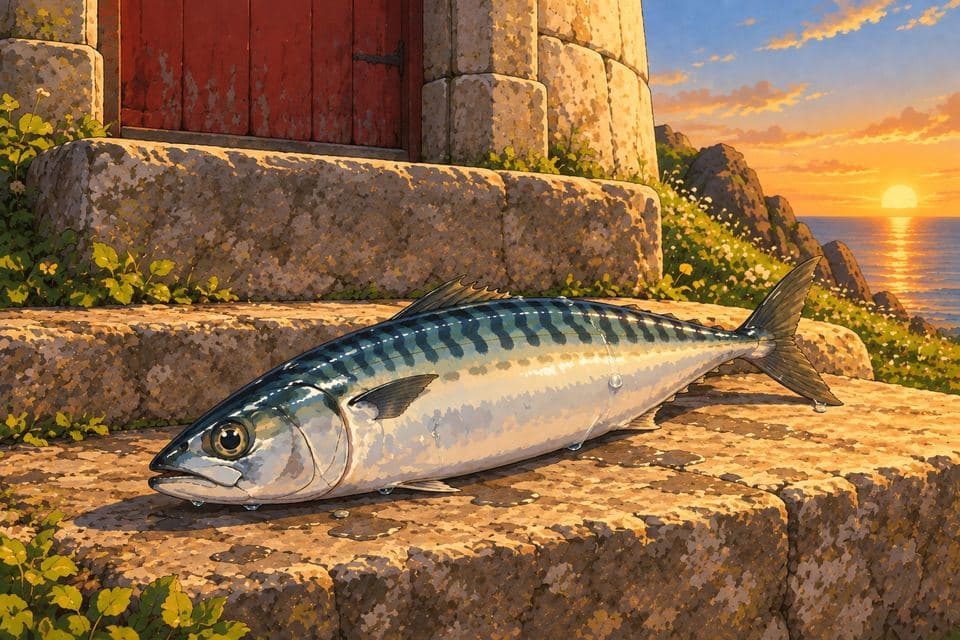
Scene 11
At dawn the wind was gone, and Bram left a fish on the doorstep for his small hero.
Scene 12
And Pip climbed those stairs once more, this time without the lantern, and without any fear at all.
Scenes from four EasyVid videos. Hover one to see it animated.
Reference images
Every character has a reference image, generated or uploaded. Each scene that tags the character sends it to the image or video model, so the face, hair, and clothes carry over.
Several characters
Tag every character in a scene and each one's reference goes with it, along with the location and props. Two bees share the honeycomb and each keeps her own look.
Voices
Each character keeps the voice you pick for every line. In Director, the voice audio goes to the video model, so the character speaks with it on screen.
Animals and mascots
A character can be anyone with a stable look: a person, an animal, a mascot, or a cartoon figure. An old otter fisherman gets a reference image like any other character.
Changes
An outfit change or a state like soaked by rain is a variant made by editing the original image. In a bedtime story about a fox who keeps a lighthouse, the stairs have a dark and a sunlit version, and the fox stays the same on both.
Long runs
A dreamer and a shadow creature come back again and again across the fifteen scenes of a music video cut on the beat.
Every character in a project has these, and every scene that tags them uses them.
| In EasyVid | |
|---|---|
| Look | A name, a description, and a portrait, generated or uploaded |
| Voice | A default voice from more than 100 voices and a default voice style; any single line can take a different emotion |
| Changes | Outfits and states like wet, muddy, or injured as variants (@Name:variant), each edited from the original portrait |
| Back view | @Name:back for over-the-shoulder dialogue shots |
| Library | Save a character and add it to a new project to keep a recurring cast the same across a series |
| Surroundings | Locations and props get reference images too, so the whole scene holds together |
Anyone whose video needs the same face from start to finish.
The same cast in every episode of a YouTube or TikTok series, saved in the library.
One teacher or guide character who leads every lesson in a course.
A mascot or spokesperson who looks the same in every ad.
Animated stories and short films where the hero stays recognizable.
From a script to a video with the same cast in every scene, in four steps.
Describe an idea or paste your own script. EasyVid writes the scenes and lists every character in them.
Each character gets a description and a portrait. Edit the description, regenerate the portrait, or upload your own image.
Every scene that tags a character sends that character's portrait to the model, and their lines are voiced with their voice.
Check the storyboard, regenerate any scene that drifted, and render your video.
Discover what you can create with EasyVid
Create stunning videos using AI voice and video generation.
Create longer videos with scenes, narration, subtitles, and editable pacing.
Create short AI videos for ads, hooks, teasers, and social posts.
Create 2-minute videos with scenes, narration, subtitles, and editable pacing.
Create 3-minute explainers, stories, lessons, and longer social videos.
Create deeper explainers, video essays, story videos, and YouTube content.
Create long-form videos for YouTube, lessons, video essays, and stories.
Transform your scripts into engaging videos effortlessly.
Convert a simple text prompt into captivating videos.
AI music video generator that syncs visuals to your track.
Create professional videos without a camera or microphone.
Produce videos optimized for YouTube and social media.
Turn your blog posts into engaging video content.
Turn listing photos into narrated home tour videos.
Create Seedance 2.5 videos in EasyVid Director Mode.
Characters speak their lines on camera, lip-synced in Director Mode.
Create videos effortlessly with our intuitive interface. No technical skills required.
Create professional videos in minutes without hiring video editors or scriptwriters.
Produce professional-grade videos with AI-powered visuals and voiceovers.
“Before EasyVid, I was too busy to create TikTok videos for my business. Now I can easily post 1 video per day without spending hours editing.”
Daniel F.
Content Creator
“I tried other AI video generators, but most churned out low-quality videos with random visuals. EasyVid adds visuals that perfectly fit my script.”
Mason M.
YouTuber
“EasyVid is the easiest video generator I've ever used. It understands what I want without me needing to specify every detail. It just works.”
Elaine K.
Marketing Manager