
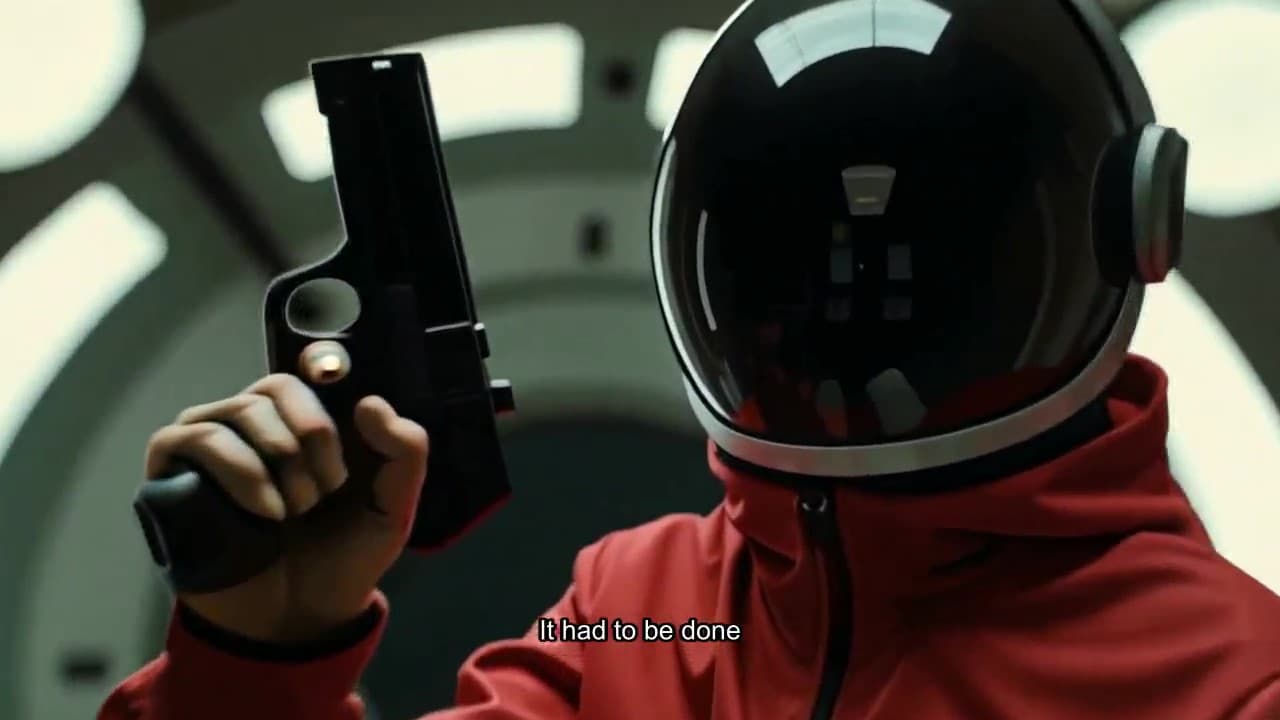
You have a story you want people to see, but a trailer usually means footage you don't have yet and an editor you can't afford. With EasyVid you can build one from a written idea: the script, the shots, the narration, and the final cut all happen in one project.
This guide walks through the whole process as the app works today.
Before you start: what makes a trailer work
A trailer is a promise, not a summary. It shows the world, the main character, and the problem, then stops before the answer. Keep three things in mind while you plan:
- One question. Pick the hook the trailer leaves hanging ("Will she get off the station?") and cut anything that doesn't feed it.
- Short lines. Trailer narration is a sentence or two at a time. A few spoken lines from your characters add punch.
- Build to a peak. Start quiet, get faster, and end on your biggest image or line.
For most trailers, 30 to 60 seconds is plenty.
Step 1: Pick a mode
When you create a project, EasyVid asks which mode to use:
- Director Mode turns your script into video scenes, lip-syncs dialogue, and adds sound effects. It's the higher quality option and uses more credits per video. It does not work with photorealistic styles, so pick a look like anime, 3D animation, or digital art.
- Classic Mode builds the trailer scene by scene: an image for each scene, a voice for each line, and a clip when you animate a scene. It's faster and cheaper per video, and it offers a photorealistic style.
The steps below are the same in both modes until the storyboard.
Step 2: Set up the Script tab
On the Script tab:
- Set Genre to Movie Trailer. This tells the writer to tease big moments without spoilers, keep lines short, and use dramatic camera moves.
- Choose the aspect ratio: vertical (9:16) for TikTok, Reels, and Shorts, square (1:1) for the Instagram feed, or landscape (16:9) for YouTube.
- Choose a style, or type your own in the custom style box.
- Set the Script length.
Step 3: Write the script
You have two ways in.
Generate it. Describe the movie in the prompt box: who it's about, where it happens, what goes wrong, and the tone you want. Specific details give you specific shots. "A courier on a dying space station finds out the last escape pod is already full" will give you more to work with than "a sci-fi thriller." You can also attach images, such as character art or a mood image, for the writer to work from. Then click Generate Script.
Bring your own. Click I have my own script and paste it in. (In Director Mode this option is for paid plans.) EasyVid scripts use a simple format: each scene is a visual in square brackets, followed by a spoken line that starts with the speaker's name in angle brackets. A trailer might start like this:
[A neon-lit city skyline at night, rain falling]
<Narrator> In a city that never sleeps...

[@Mara running down a dark alley, glancing back over her shoulder]
<Narrator> one woman knows what's coming.

[Close-up of @Mara, out of breath, pressed against a wall]
<Mara> They're not looking for me. They're looking for what I took.
If your draft is in a different format, like a screenplay, click Fix formatting and EasyVid rewrites it into this layout.
Step 4: Shape it with AI edits
Read the script out loud. Trailers live or die on rhythm. To change something, type a request into Edit with AI, such as "Add a cliffhanger to the end" or "Make the narrator's lines shorter," and EasyVid updates the script. You can also edit any line by hand.
Step 5: Check your cast and locations
EasyVid lists the Characters and Locations your script uses, plus any References such as a logo or a prop. Each one gets an image that the scenes are built from, which is what keeps your hero looking the same from shot to shot. Fix a character's look here, before you make the storyboard, because every scene with that character uses it. See consistent characters for how this works.
When the cast looks right, click Generate Storyboard.
Step 6: Build the shots on the Storyboard tab
Each scene in your script becomes a scene card.
In Classic Mode, each scene has an image and the audio for its line. EasyVid can generate both for every scene when it builds the storyboard. Regenerate any image that misses, or edit its prompt first. To add motion, describe the movement in the scene's video prompt (a slow push in on a face, a fast pan across a skyline) and click Animate. A few strong animated shots often beat animating everything.
In Director Mode, each scene is a video clip, with dialogue lip-synced to the characters and sound effects added. Regenerate any clip that isn't right.
In both modes, choose the voice for your narrator and each character. Trailer narration usually works best with a deep, steady voice. With Expressive voice style on, EasyVid reads the tone of each line from the script. More on that in expressive voices.
Step 7: Add music, captions, and your logo
A trailer leans hard on its music. Upload your own background music on the Storyboard tab, and pick music you have the rights to use. Then set your subtitles: turn them on or off, place them at the bottom or center, set the size, and pick a caption style. If you want a studio card or watermark, add your logo to a corner of the video.
Use Preview to watch the trailer through. Look at pacing above all: if a scene drags, shorten its line or cut the scene.
Step 8: Render and download
Click Render Final Video in the top bar. When it's done, the Video tab shows the result with a download button. Rendered videos are deleted after 7 days, so download the ones you want to keep.
Tips for a better trailer
- Give the writer details. Names, places, objects, and the central problem all turn into specific shots.
- Fix it early. A change to the script or a character is cheap. A change after every clip is generated costs time and credits.
- Make more than one cut. Try a version with more narration and one that lets the images carry it, then keep the stronger one.
- End on the hook. Your last scene should leave the question open, followed by the title.
Start your trailer
Open a new project, set the genre to Movie Trailer, and start with one paragraph about your story. If you're working from a finished screenplay, script to video explains how EasyVid handles longer scripts, and the AI storyboard page covers the storyboard step in more depth.